You can make custom game skins using free tools like Blender, Photoshop, or GIMP, plus the modding kit your game supports. Most beginners finish their first simple skin in a single afternoon. You don’t need a art degree or coding background to start.
This guide walks you through the entire process. You’ll pick the right tools, learn the basic workflow, and avoid the mistakes that trip up most new skin creators. By the end, you’ll have a clear path from blank canvas to a skin you can actually use in-game.
Game skins let you express your style without changing how the game plays. Whether you want a subtle color swap or a full character redesign, the steps below apply to most popular titles.
What Are Custom Game Skins and Why Players Make Them
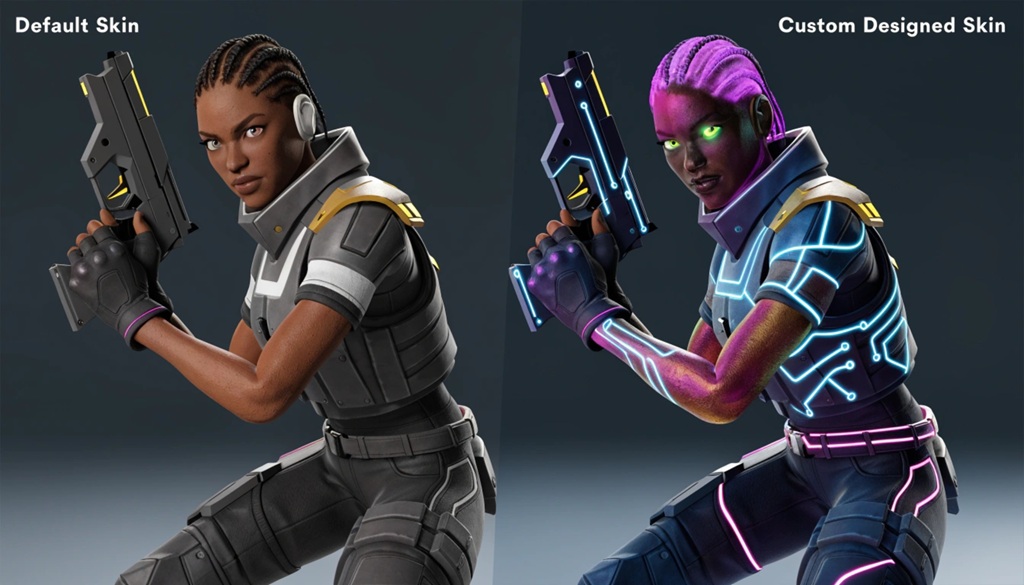
A custom game skin changes how a character, weapon, or item looks without altering its stats or gameplay function. Players make them for three main reasons: to stand out, to fix a design they don’t like, or simply to try something creative.
Skins fall into a few categories:
- Texture skins – Change colors and patterns on an existing model
- Model skins – Replace the shape of the character or item entirely
- Full overhauls – Combine new textures, new geometry, and sometimes new animations
Most beginners start with texture skins. They require fewer tools and less technical knowledge, and you can see results fast. Once you understand the basics, moving to model edits feels much less intimidating.
Essential Tools for Creating Custom Game Skins
Transforming your vision into a game-ready asset requires a synchronized workflow using three core components: a raster image editor for painting textures, a 3D modeling application for mesh adjustments, and your target title’s official modding toolkit. Before diving into the design phase, ensure your workspace is fully equipped and that you understand how these program files interface with your game engine. Once your assets are ready to export, follow our step-by-step guide on install video game mods safely without crashes to guarantee your custom skins load flawlessly without compromising stability.
Image Editors
Use Photoshop, GIMP, or Paint.NET to edit texture files. GIMP is free and handles most tasks a beginner needs. Photoshop offers more advanced layer tools, which help once you start working on detailed designs.
3D Modeling Software
Blender is the go-to choice for most modders because it’s free and has a large support community. If you plan to change a character’s shape or add new parts, you’ll need this step. Simple texture edits skip this entirely.
Game-Specific Modding Kits
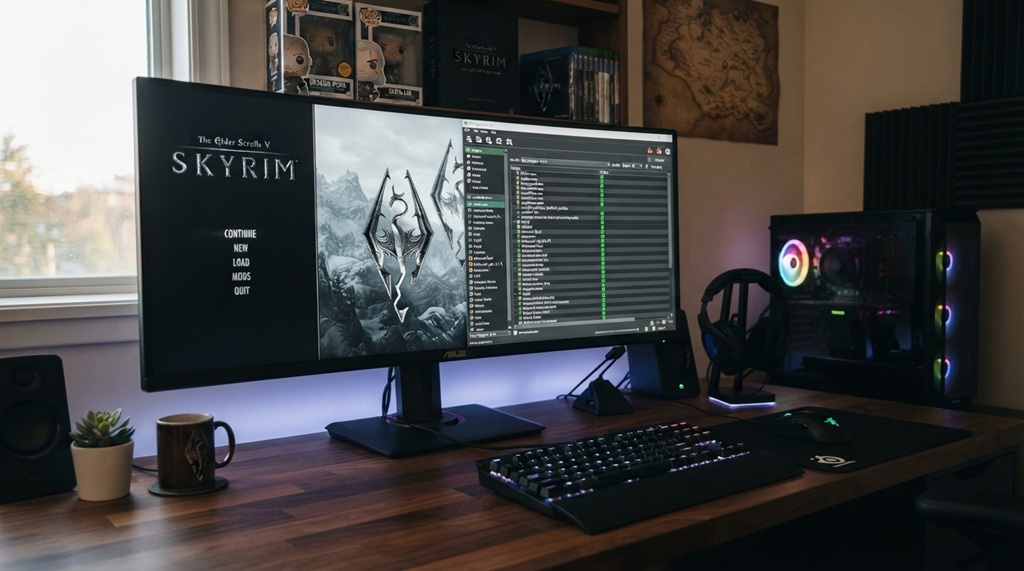
Many games ship with an official kit or rely on community-made tools. For example, Skyrim uses the Creation Kit, while games like Minecraft rely on resource packs that don’t require any special software at all. Always check your game’s official forums or wiki first, since using the wrong tool can waste hours of work.
Step-by-Step Process to Create Your First Skin
Follow these six steps in order. Skipping ahead usually causes problems later in the process.
Step 1: Choose Your Game and Check Modding Support
Not every game allows custom skins. Check the developer’s terms of service before you start, since some titles ban third-party skins in multiplayer modes to prevent cheating.
Step 2: Extract the Base Texture or Model
Most modding kits include a tool to pull the original texture files from the game. This gives you a template to work from, so your new skin fits the character’s exact shape and proportions.
Step 3: Design Your Skin
Open the extracted texture in your image editor. Work in layers so you can undo mistakes without starting over. Keep your changes aligned to the original UV map, which is the flat, unfolded version of the 3D model’s surface.
Step 4: Test Your Skin In-Game Often
Don’t wait until you finish the whole design to test it. Load your skin into the game every 20-30 minutes of work. This catches stretching, color problems, or misaligned textures early, when they’re easy to fix.
Step 5: Refine Based on What You See
Small errors look bigger once you see them in motion. Adjust shading, fix seams, and tweak colors based on how the skin actually looks in gameplay lighting, not just in your editor.
Step 6: Export in the Correct Format
Each game requires a specific file format and folder structure. Check your modding kit’s documentation for exact export settings, since a wrong format is one of the most common reasons a finished skin fails to load.
Common Mistakes That Ruin Custom Skins
Most beginner skins fail for one of four reasons. Knowing these ahead of time saves you hours of frustration.
- Ignoring the UV map: Painting without checking the UV layout causes stretched or warped textures once the skin loads onto the 3D model.
- Skipping in-game testing: A skin can look perfect in your editor and still look broken in the actual game due to different lighting and shading.
- Using the wrong resolution: Match your texture resolution to the game’s original files. A mismatched resolution can cause blurry or pixelated results.
- Forgetting file naming rules: Many modding kits expect exact file names and folder structures. One typo can stop your skin from loading at all.
A tip most guides skip: Save a backup of the original, unedited texture file before you touch anything. If your modding kit corrupts a file or you want to compare your progress against the base design, you’ll need that clean copy. Many beginners lose their reference file halfway through and have to re-extract everything from scratch.
How to Share and Use Your Custom Skin Safely
You can share your finished skin on community sites like Nexus Mods, CurseForge, or the game’s official forum, depending on the title. Before uploading anywhere, read the platform’s content rules, since most sites ban skins that use copyrighted material from other games or franchises.
Always credit any base templates or assets you didn’t create yourself. This isn’t just polite many communities remove uploads that violate credit rules, and repeated violations can get your account banned.
If you’re making a skin for personal use only, you can usually skip the upload step entirely and just install it locally. Check your game’s file structure documentation for the correct installation folder.
Frequently Asked Questions
Do I need coding skills to make a custom game skin?
No, basic texture skins don’t require any coding. You mainly need image editing skills and an understanding of how to use your game’s modding kit. Coding becomes useful only if you want to change game mechanics alongside the visual skin.
Can I sell custom game skins I make?
This depends entirely on the game’s terms of service. Some games allow creators to sell skins through official marketplaces, while others strictly prohibit selling any modified content. Always check the specific game’s policy before attempting to monetize your work.
What file format do most game skins use?
Most games use PNG or DDS files for textures, though the exact format varies by title. Your game’s modding kit documentation will list the required format and resolution. Using the wrong format is one of the top reasons skins fail to load correctly.
Will making a custom skin get me banned?
It depends on the game and where you use the skin. Single-player games rarely have issues, but many multiplayer titles ban third-party skins to prevent unfair advantages or cheating. Read your game’s official rules before installing any custom skin in a multiplayer environment.
How long does it take to make a good custom skin?
A simple texture-only skin can take a few hours for a beginner. More complex model changes or full overhauls can take several days or weeks, depending on your skill level and the game’s complexity. Your speed will improve significantly after your first two or three projects.
Conclusion
Making custom game skins is a skill you can build with free tools and a bit of patience. Start with a simple texture edit, test often, and don’t skip the small details like UV maps and file naming. Once you finish your first skin, the whole process gets faster and far less intimidating.
Pick one game, download the right tools, and start with something small. Your first skin doesn’t need to be perfect it just needs to teach you the workflow you’ll use for every project after it.