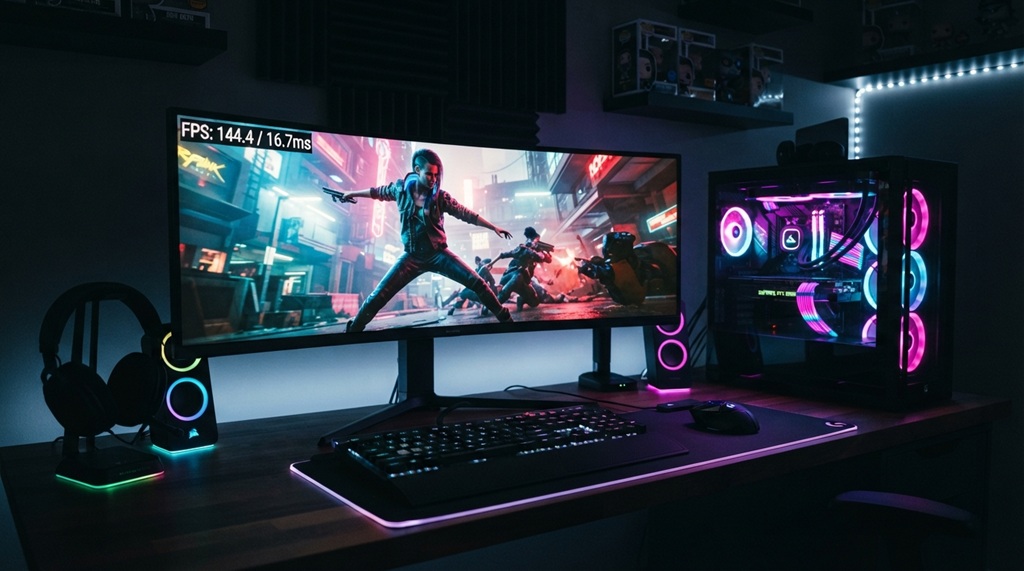
You can boost your gaming frame rates without buying new hardware. Most PCs run games far below their real potential. The fix usually comes down to settings, drivers, and a few smart habits not a bigger budget.
This guide walks you through the exact steps that matter. You will update drivers the right way, tune Windows settings, clean up your background processes, and adjust in-game graphics for the best balance of speed and quality. Each step is simple enough to do today.
By the end, you will know exactly where your FPS is going and how to get it back.
Update Your Graphics Drivers the Right Way

Outdated drivers are one of the top causes of low FPS and stuttering. Game studios and GPU makers release new drivers often. These updates fix bugs and add performance gains for specific games.
Use the Official Tools, Not Windows Update
Windows Update sometimes installs an old or generic driver. Instead, get drivers straight from the source.
- NVIDIA users: Download the GeForce Experience app or use the NVIDIA App. Both scan your system and install the latest Game Ready driver.
- AMD users: Install AMD Software: Adrenalin Edition. It handles driver updates and includes built-in game tuning tools.
- Intel users: Use the Intel Driver & Support Assistant for integrated or Arc graphics.
Do a Clean Install When Switching Brands
If you just swapped GPU brands (say, NVIDIA to AMD), do a clean driver install. Leftover files from the old driver can cause crashes or performance drops. Tools like Display Driver Uninstaller (DDU) remove old driver files completely before you install the new one.
Tune Windows for Gaming Performance
Windows runs dozens of background tasks you never see. Many of them steal CPU cycles and memory that your game could use instead.
Turn On Game Mode
Windows Game Mode tells your PC to prioritize the game you’re playing. Go to Settings > Gaming > Game Mode and switch it on. It won’t work miracles, but it gives your game first access to CPU resources.
Set Your Power Plan to High Performance
Windows sometimes defaults to a balanced or power-saving plan, which limits your CPU speed. Open Control Panel > Power Options and select High Performance or Ultimate Performance. This keeps your CPU running at full speed instead of scaling down to save energy.
Disable Unnecessary Startup Programs
Every extra app that launches at startup uses RAM and CPU time. Open Task Manager > Startup Apps and disable anything you don’t need running in the background chat apps, cloud sync tools, and browser helpers are common culprits.
Adjust Visual Effects for Performance
Windows adds animations and shadows that look nice but cost resources. Go to Settings > System > About > Advanced System Settings > Performance Settings and choose Adjust for best performance. This strips out cosmetic effects you won’t miss mid-game.
Optimize In-Game Graphics Settings
Your in-game settings often matter more than your hardware. A few smart changes can add 20-30 frames per second without hurting how the game looks.
Prioritize the Settings That Actually Cost FPS
Not all graphics settings cost the same amount of performance. Shadows, ambient occlusion, and anti-aliasing tend to hit your FPS the hardest, while texture quality is often nearly free if you have enough VRAM. Try this order when tuning a new game:
- Lower shadow quality first it’s usually the biggest FPS drain with the least visual payoff.
- Turn off or reduce ambient occlusion.
- Switch anti-aliasing to a lighter method like FXAA instead of MSAA.
- Keep texture quality high if your GPU has enough VRAM (6GB or more).
- Cap or match your frame rate to your monitor’s refresh rate to avoid wasted GPU cycles.
Use Upscaling Technology to Instantly Elevate Frame Rates
NVIDIA DLSS, AMD FSR, and Intel XeSS dynamically render games at a lower internal resolution before leveraging advanced AI algorithms to reconstruct the image to native clarity, instantly unlocking a 30% to 50% performance increase with virtually imperceptible visual loss. Before investing in expensive hardware upgrades, explore your game’s graphics menu to enable these cutting-edge features; once your system is delivering buttery-smooth performance, you can seamlessly pivot your focus toward mastering gameplay and learning how to unlock secret achievements and rare trophies fast.
Manage Background Processes and Bloatware
Background apps quietly eat your CPU, RAM, and disk resources. Even a browser with too many tabs open can pull performance away from your game.
- Close browsers, Discord overlays, and streaming software you’re not actively using.
- Check Task Manager > Processes and sort by CPU or Memory usage to spot the biggest offenders.
- Disable unnecessary browser extensions and auto-updaters.
- Turn off overlays for apps like Steam, Discord, and Xbox Game Bar if you don’t need them each one adds a small performance cost.
Keep Your Hardware Cool and Clean
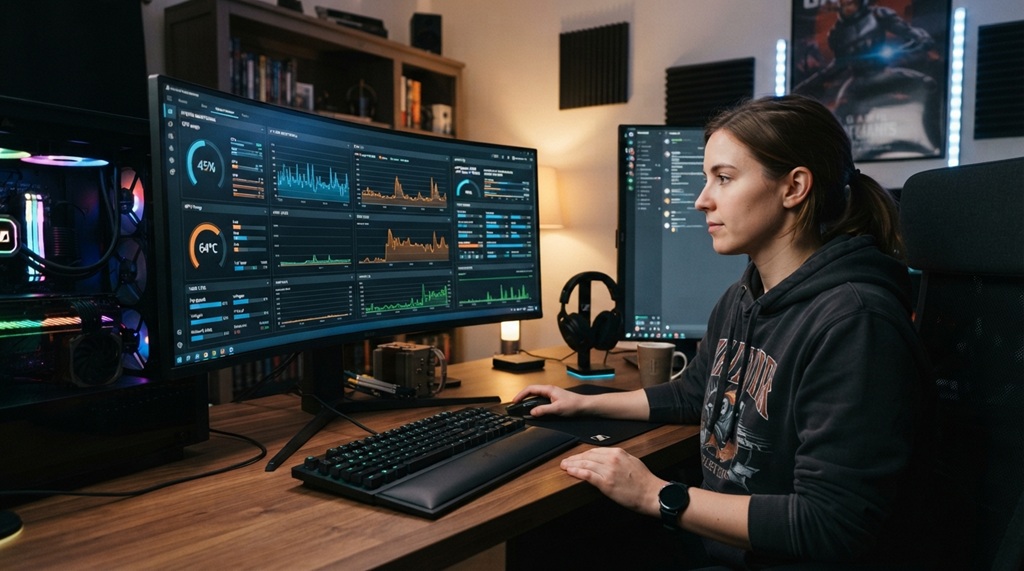
Heat throttles performance. When your CPU or GPU gets too hot, it slows itself down to avoid damage and your frame rate drops as a result.
Clean Dust From Fans and Vents
Dust buildup blocks airflow and traps heat inside your case. Open your PC every few months and use compressed air to clear out fans, heat sinks, and vents. This alone can lower temperatures by several degrees.
Check Your Case Airflow
A case with poor airflow struggles to cool your components, even with good fans. Make sure intake and exhaust fans are balanced, and avoid blocking vents with cables or furniture.
Monitor Your Temperatures
Free tools like HWMonitor or MSI Afterburner show your CPU and GPU temperatures in real time. If your GPU regularly hits 80°C or higher under load, it’s likely throttling and losing performance.
Upgrade the Right Hardware Component First
If you’ve tuned every setting and still want more FPS, the next step is a targeted hardware upgrade not a full rebuild. According to industry benchmarks, RAM and storage upgrades often deliver the biggest jump for the smallest cost.
- RAM: 16GB is the current baseline for gaming. If you’re running 8GB, upgrading to 16GB can reduce stuttering significantly, especially in newer titles.
- Storage: Moving your games to an SSD cuts load times dramatically and can reduce texture pop-in during gameplay.
- GPU: This is the most expensive upgrade, so it should be your last step, not your first. Check whether your CPU or RAM is actually the bottleneck before spending on a new graphics card.
One angle most guides skip: check your CPU usage during gameplay before buying a new GPU. If your CPU sits near 100% while your GPU stays lower, a faster graphics card won’t help much you’re CPU-bound, and the money is better spent elsewhere.
Frequently Asked Questions
How much can I really boost my FPS through optimization alone?
Many gamers see a 15-40% FPS increase just from driver updates, Windows tweaks, and in-game settings changes. The exact gain depends on your hardware and how outdated your current setup is. Games that were poorly optimized to begin with tend to see the biggest jumps.
Does closing background apps actually improve gaming performance?
Yes, closing background apps frees up CPU, RAM, and disk resources your game can use instead. The effect is usually small for apps like Notepad, but bigger for browsers with many tabs or streaming software. On lower-end PCs, this difference can be very noticeable.
Should I overclock my CPU or GPU for better gaming performance?
Overclocking can add extra performance, but it also raises temperatures and carries some risk if done incorrectly. Beginners should try safer options first, like using a manufacturer’s auto-overclock tool (such as MSI Afterburner or AMD’s built-in tuning). Only move to manual overclocking once you understand your cooling limits.
Why does my FPS drop only in certain games?
FPS drops in specific games usually point to a CPU or RAM bottleneck, an outdated game-specific driver profile, or background processes tied to that game (like overlays or anti-cheat software). Check the game’s own settings menu first, since many titles ship with unnecessary effects turned on by default. If the drop is sudden and recent, a driver rollback can also help.
Is it worth buying new hardware if my PC is a few years old?
Not always many older PCs still have room to improve through the steps in this guide. Start with drivers, Windows settings, and in-game tweaks before spending money. If you’re still short on FPS after that, check whether RAM or storage is holding you back before jumping straight to a new GPU.
Conclusion
Boosting your gaming frame rates doesn’t have to mean a big hardware purchase. Start with driver updates, tune your Windows settings, and adjust your in-game graphics using the priority order above. Keep your background processes light and your hardware clean and cool.
Work through these steps in order, and you’ll likely see a real FPS boost before you ever open your wallet. If you still want more after that, you’ll now know exactly which upgrade is worth your money.