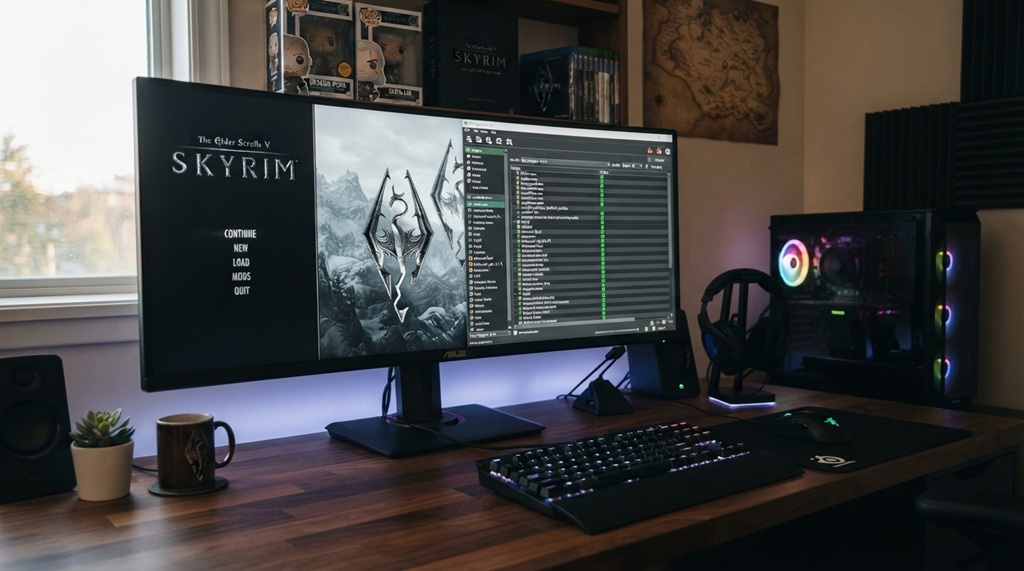
Installing Skyrim mods safely means using a mod manager, checking load order, and testing mods one at a time instead of dumping fifty mods in at once. This approach stops most crashes before they start. If your game keeps freezing or crashing to desktop, the problem usually isn’t Skyrim itself it’s how the mods were installed.
This guide walks you through a safe, tested process. You’ll set up the right tools, install mods in the correct order, and learn how to spot conflicts before they ruin your save file. Whether you’re modding Skyrim for the first time or fixing a broken setup, these steps will help you build a stable game.
Why Skyrim Crashes Happen When You Install Mods
Most Skyrim crashes come from mod conflicts, not bad luck. When two mods try to change the same game files, Skyrim doesn’t know which change to use. This confusion often causes a crash.
Common causes include:
- Load order problems. Mods need to load in a specific sequence. Get it wrong, and one mod overwrites another in a way that breaks the game.
- Missing requirements. Many mods depend on other mods or tools, like SKSE (Skyrim Script Extender). Skip a requirement, and the mod won’t work right.
- Too many mods at once. Installing dozens of mods in one sitting makes it hard to find the one causing trouble.
- Outdated mods. Old mods built for a different Skyrim version can clash with your current game files.
- Script-heavy mods. Mods that add a lot of scripts put more strain on the engine. Too many at once can overload your save file.
Understanding these causes helps you avoid them from the start, instead of troubleshooting after a crash wipes out your progress.
Choose the Right Mod Manager Before You Start
A good mod manager is the single most important tool for safe Skyrim modding. It handles load order, tracks conflicts, and lets you remove mods cleanly if something breaks.
Vortex vs. Mod Organizer 2
The two most trusted options are Vortex and Mod Organizer 2 (MO2).
- Vortex is made by the same team behind Nexus Mods. It’s beginner-friendly and automatically sorts load order using rules built into each mod page.
- Mod Organizer 2 gives you more control. It keeps mods separate from your actual game folder, which makes it easier to spot conflicts and undo changes.
If you’re new to modding, start with Vortex. If you plan to run a large, complex mod list, MO2’s extra control is worth the learning curve.
The Perils of Manual Modding
Manually dragging files into your Skyrim directory might seem convenient for a quick tweak, but it rapidly exposes your game to stability risks and file corruption. Without a central tracking system, identifying conflicting files becomes nearly impossible, and uninstalling a mod often requires a tedious hunt through core system folder where a single misstep can break your entire installation. Utilizing a dedicated mod manager isolates your files into clean, reversible virtual instances, giving you complete authority over your installation hierarchy and ensuring your game remains pristine. Once you have mastered these core principles of mod safety and load order management, elevate your world further by following our guide on how to install Skyrim immersive dragon mods step by step to safely overhaul your game’s legendary beasts.
Install SKSE and Core Tools First
SKSE (Skyrim Script Extender) is required for a large share of popular Skyrim mods, so install it before anything else. Without it, script-heavy mods simply won’t run, and Skyrim may crash trying to load them.
Steps to set this up:
- Download SKSE from the official Skyrim Script Extender website never from a third-party site.
- Extract the files into your main Skyrim game folder, not a mod manager folder.
- Install Address Library for SKSE Plugins, a common requirement for many mods.
- Add SSE Engine Fixes, which patches known stability bugs in the base game.
- Launch the game once through SKSE to confirm it works before installing any mods.
These core tools form the foundation your other mods will rely on. Skipping this step is one of the most common reasons Skyrim mod setups become unstable.
Follow the Correct Load Order
Load order determines which mod’s changes take priority when two mods edit the same thing. Getting this wrong is the top cause of crashes and glitches in modded Skyrim.
General Load Order Rules
- Unofficial patches load early, right after the base game files.
- Framework mods (like SKSE-based tools) load next.
- Gameplay overhaul mods load after frameworks.
- Texture and visual mods usually load later, since they rarely conflict with gameplay mods.
- Patches made specifically to fix conflicts between two mods should load last.
Use LOOT to Sort Automatically
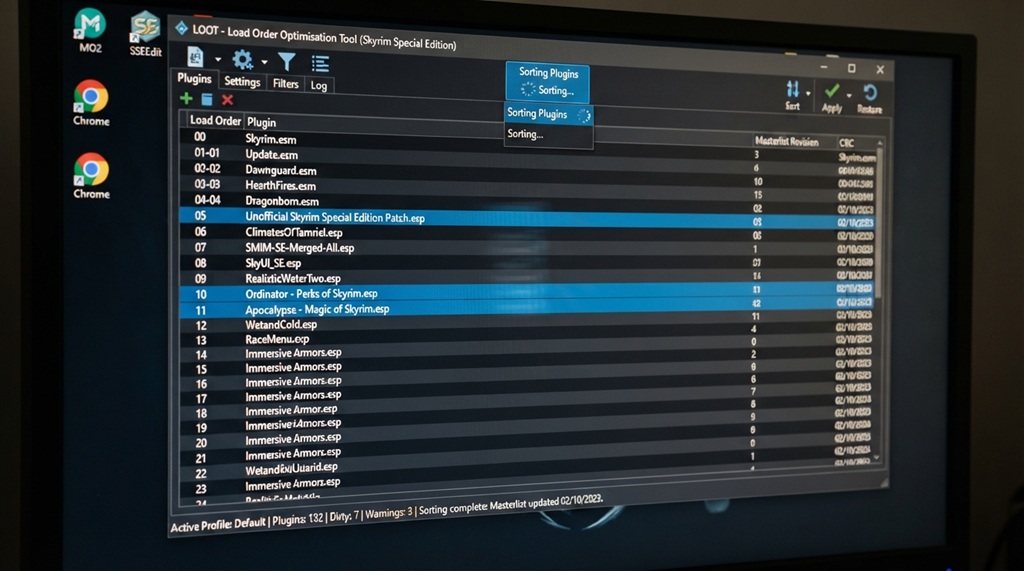
LOOT (Load Order Optimisation Tool) scans your mod list and sorts it based on community-tested rules. Most mod managers can run LOOT directly, saving you from manually reordering hundreds of mods.
Run LOOT after installing new mods, and check the messages it gives you. LOOT often flags missing requirements or known conflicts, which helps you catch problems early instead of after a crash.
Install Mods in Small Batches, Not All at Once
Installing mods in small groups, then testing your game after each group, makes it far easier to find what’s causing a crash. If you install fifty mods at once and the game breaks, you’re stuck guessing which one caused the problem.
A safer method:
- Install 5–10 mods at a time.
- Load into the game and play for a few minutes.
- Check for crashes, missing textures, or broken quests.
- If everything works, save your progress and install the next batch.
- If something breaks, you’ll only need to check the last few mods you added.
This step takes more patience, but it saves hours of troubleshooting later. It’s one of the most overlooked tips in Skyrim modding guides, yet it prevents the majority of “mystery crashes” players run into.
Check for Mod Conflicts and Compatibility Patches
Mod conflicts happen when two or more mods try to change the same part of the game, like a location, a spell, or an NPC. Left unresolved, these conflicts often cause crashes or broken content.
How to Spot Conflicts
- Use your mod manager’s built-in conflict detector. Both Vortex and MO2 highlight files that overlap between mods.
- Read the mod’s Nexus Mods page. Most authors list known conflicts and compatibility patches in the description.
- Search the mod’s comment section for crash reports other users often report the exact issue you’re facing.
Fixing Conflicts
Many popular mods have compatibility patches made by the community specifically to fix known conflicts. Install these patches after both conflicting mods, so the patch loads last and applies its fixes properly.
If no patch exists, you may need to choose between the two mods, or use a tool like xEdit to manually resolve the conflict though this is an advanced step best left until you’re comfortable with basic modding.
Back Up Your Save Files and Game Folder
Backing up your save files before installing mods protects your progress if something goes wrong. This step takes a few minutes but can save dozens of hours of playtime.
What to back up:
- Save files, usually found in your Documents folder under “My Games\Skyrim Special Edition\Saves.”
- Your entire Skyrim game folder, especially before major mod changes.
- Your mod manager’s profile, if it supports exporting mod lists.
Store backups in a separate folder, not inside your Skyrim directory, so a bad mod install can’t affect them. If a new mod corrupts your save, you can restore the backup and get back to playing within minutes.
Frequently Asked Questions
Why does Skyrim crash on startup after installing mods?
This usually happens when a required tool, like SKSE, isn’t installed correctly, or a mod is missing a dependency it needs to run. Check your mod manager for warning messages, and confirm SKSE launches the game properly on its own before adding mods.
How many mods can Skyrim handle before crashing?
There’s no fixed number stability depends on mod quality and load order, not mod count. Some players run 200+ mods smoothly, while others crash with just 20, usually due to conflicts or missing requirements.
Do I need both LOOT and a mod manager?
Yes, they serve different purposes. Your mod manager installs and organizes mod files, while LOOT sorts your load order based on known compatibility rules.
Can I install mods mid-playthrough without breaking my save?
Small, script-free mods are usually safe to add mid-game. Large overhaul mods or anything with heavy scripting should be installed on a new game, since they can corrupt an existing save.
What’s the safest way to remove a mod without crashing my game?
Use your mod manager to uninstall it cleanly, rather than deleting files manually. After removal, load an old save from before the mod was installed, since some changes stay embedded in your save file otherwise.
Conclusion
Installing Skyrim mods safely comes down to preparation: use a mod manager, install SKSE and core tools first, follow proper load order, and add mods in small batches. Backing up your saves and checking for conflicts along the way will catch most problems before they cause a crash.
Modding Skyrim takes patience, but it doesn’t have to be stressful. Follow these steps, test as you go, and you’ll end up with a stable, mod-packed game you can actually enjoy.